How to Sell Digital Downloads on Shopify in 2026 (Complete Setup Guide)
From zero to your first digital sale. The complete setup walkthrough
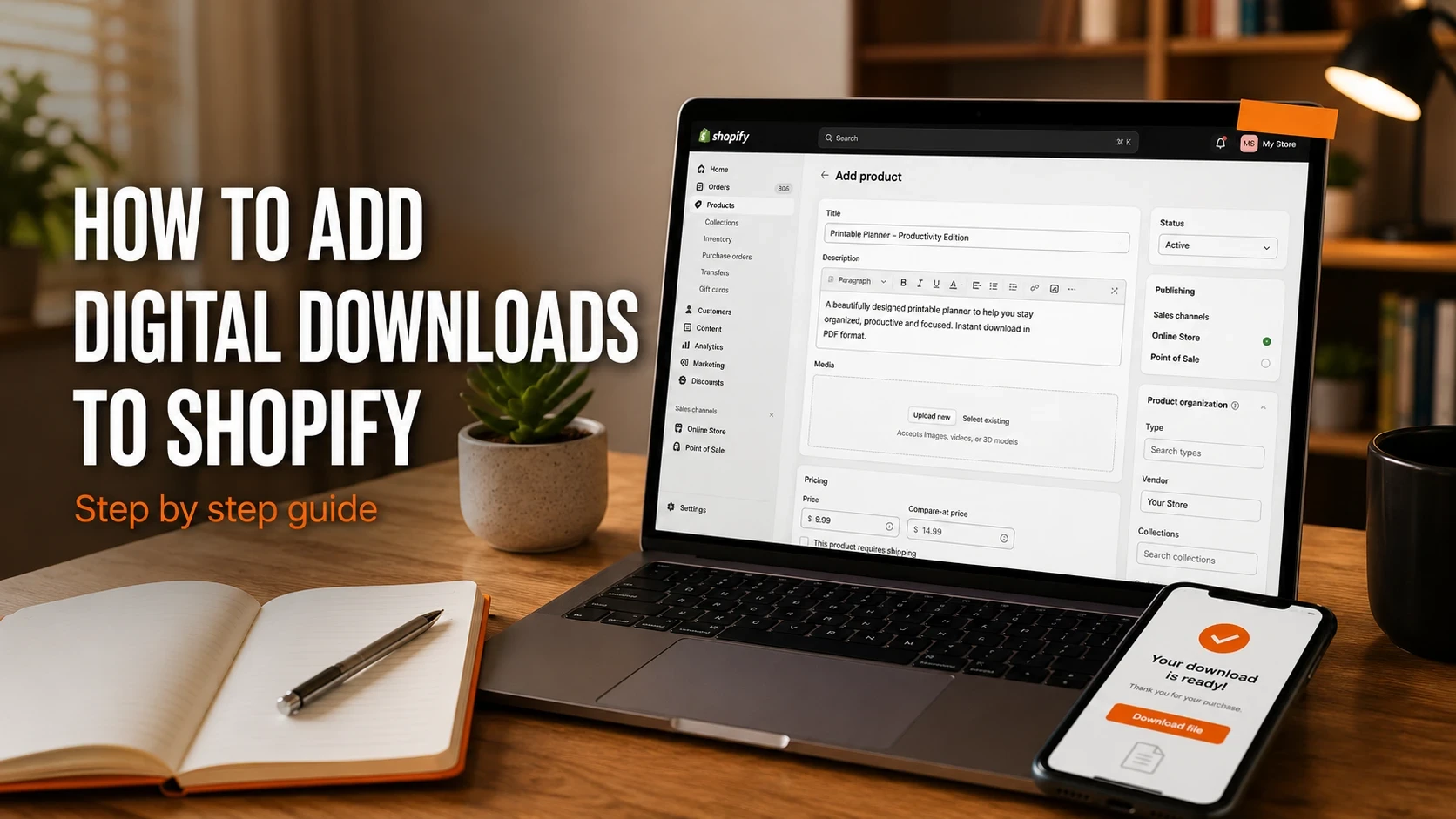
A photographer in Austin who spent three years building a Lightroom preset pack and wants to sell it for $29 doesn't need a warehouse, a fulfillment partner, or a shipping label. She needs a Shopify product linked to a file delivery app, a couple of settings toggled correctly, and a way to make sure customers can actually download their purchase the moment they pay. That's what this guide covers: the exact steps to go from a blank Shopify product to a fully working digital download, using Big Digital Downloads, including how to set up download protection, how to make files available on the thank you page and in customer accounts, and how to sell multiple versions of the same product if your catalog needs it.
Digital products have near-zero marginal cost per sale. You create the file once, and every sale after that is revenue without restocking, shipping, or fulfillment complexity. According to Shopify's own data, digital products typically achieve profit margins of 80 to 95% after fees, a figure that's hard to match with physical goods even at high price points.
Shopify doesn't handle digital file delivery natively out of the box the way it handles physical orders, but it integrates with delivery apps that handle everything a physical fulfillment center would otherwise do: automatic file sending, access control, download limits, and email confirmation. The Luxe Lens, a digital product shop selling photography assets on Shopify, has generated over $33.6 million from digital downloads. The platform scales; the setup just needs to be correct.
The key difference from a physical product store is two settings you'll flip off at the product level: inventory tracking (which doesn't apply when a file can be sold unlimited times) and shipping (which adds unnecessary friction for customers buying something that delivers instantly). Those two changes, plus the delivery app, are the entire infrastructure difference between a physical and a digital product on Shopify.
A Shopify store with at least one active plan. The free trial works for testing, but customers won't be able to complete purchases until a paid plan is active.
Big Digital Downloads installed from the Shopify App Store. The free plan covers 3 products and 15 orders, which is enough to complete this entire setup and test the full customer experience before you decide whether to upgrade.
Your digital file ready to upload. PDF, JPG, MP3, MP4, ZIP, RAR, and most standard formats are all supported. There's no file size limit on Big Digital Downloads, which matters if you're delivering high-resolution assets or large audio files.
A Shopify product created and saved (you'll configure it in the next step).
Before Big Digital Downloads can do anything, the product needs to exist in Shopify. This is the same process as any other product, with two settings changed.
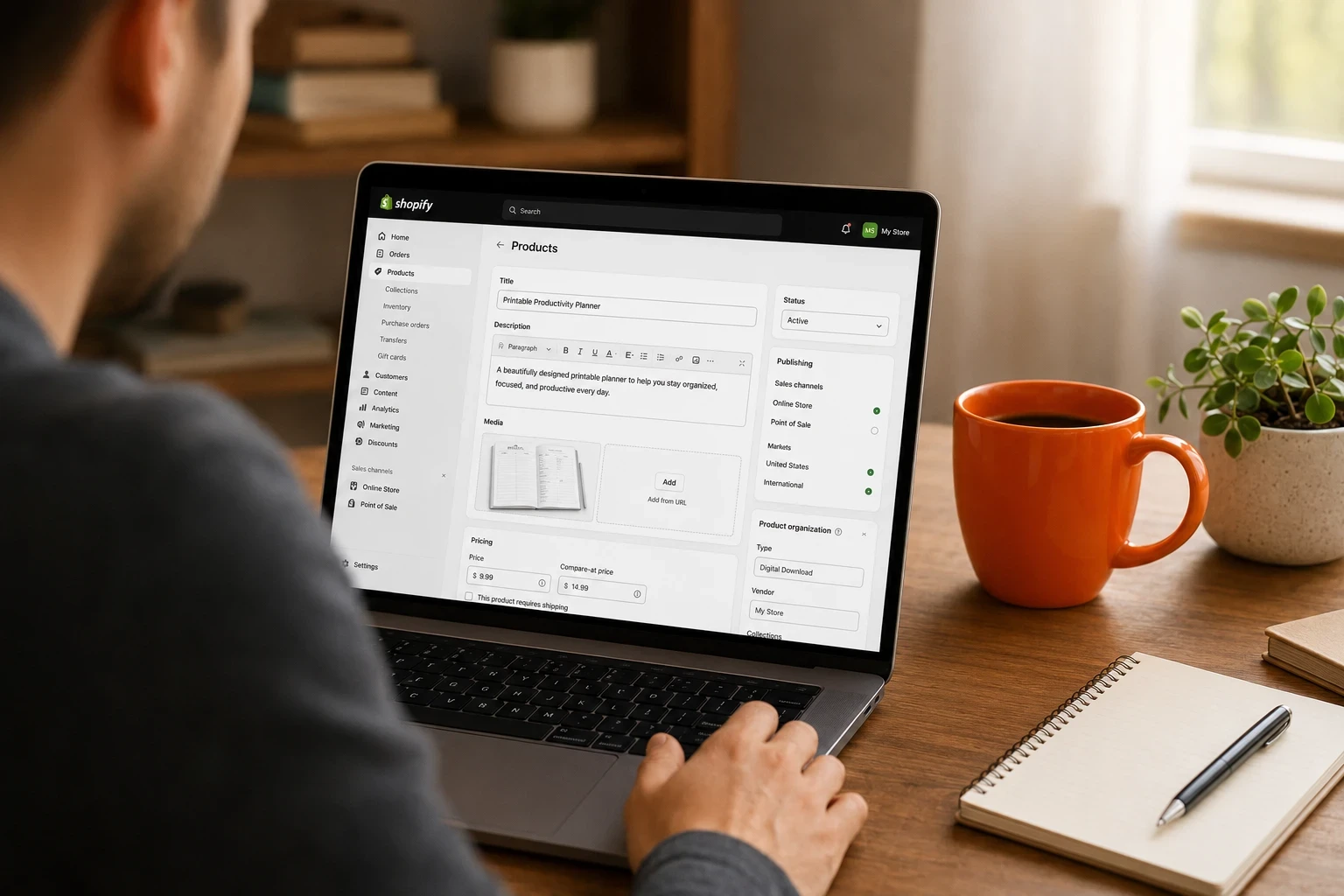
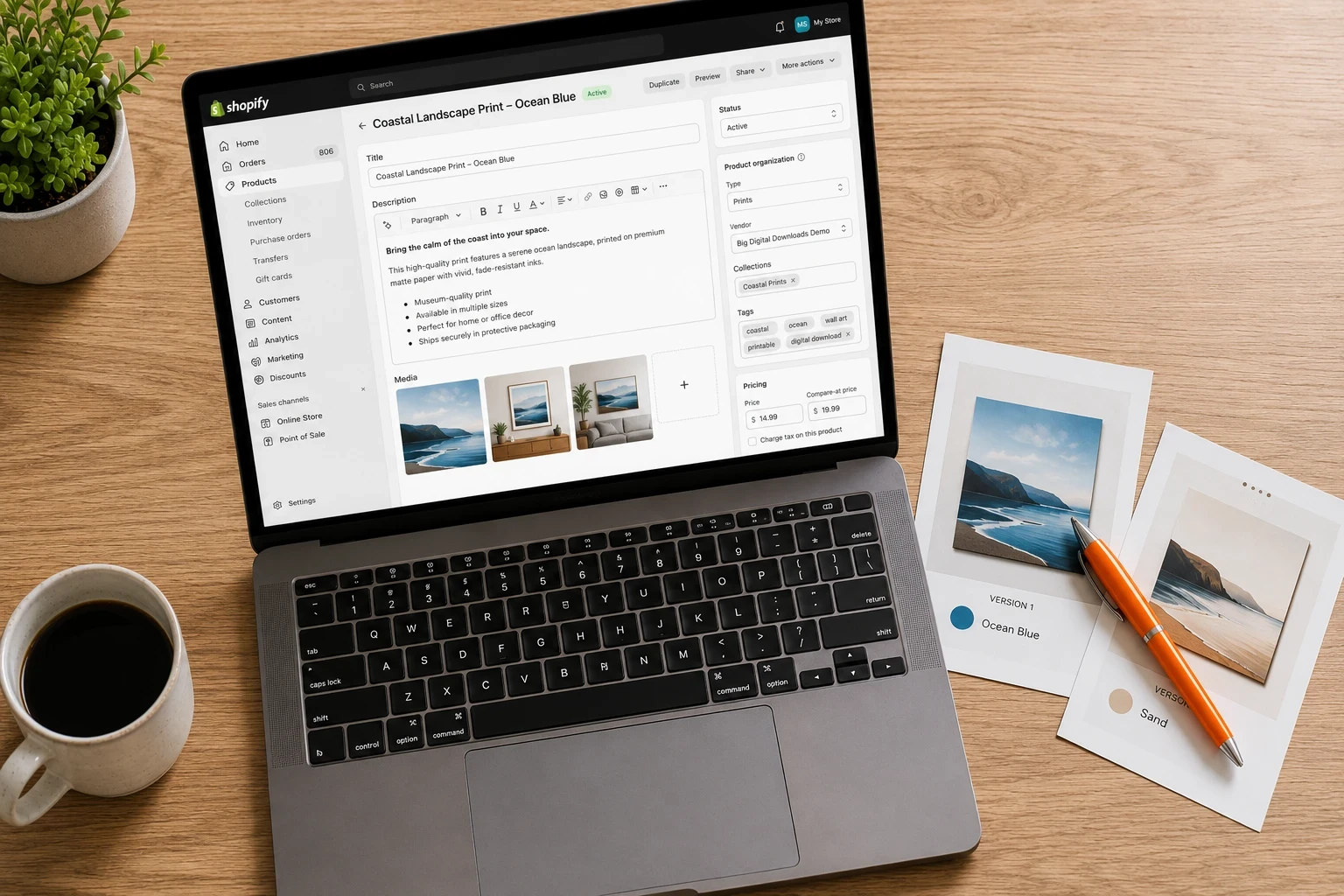
From your Shopify admin, click Products in the left panel, then Add product. Fill in your title, description, and price the same way you would for a physical item. Upload a cover image. Save the product.
Now scroll to the Shipping section and uncheck "This product requires shipping." This tells Shopify not to prompt customers for a shipping address at checkout, which removes a point of confusion for buyers who know they're getting a file, not a box. While you're there, uncheck "Track inventory" as well, since a digital file can be sold an unlimited number of times with no stock to deplete.
With the Shopify product saved, open Big Digital Downloads from your Shopify admin (Apps in the left panel, then Big Digital Download). Click Digital Products, then Create Digital Product.
You'll be asked to choose between two options: creating a standard digital product (where you upload your own file), or using the AI to create a custom digital product. For the standard setup, choose the first option. The AI option generates a unique digital product for each individual order, which is a more advanced use case for sellers who deliver personalized or custom content per buyer.
Click "Select a product" and choose the Shopify product you just created. Then configure three things.
What customers get access to. Big Digital Downloads offers three delivery modes: Digital Files (the customer receives the file you upload), Links (the customer receives a URL, useful for content hosted on Google Drive, Notion, or a course platform), or Digital Files and Links (both). Most sellers delivering downloadable assets choose Digital Files. Sellers who host content on an external platform and want to deliver a secure access link without moving the file choose Links.
Download limits. "Limit download in time" sets an expiration window so the link stops working after a number of days. "Limit download per order" caps how many times a single customer can download the file. Both are optional on the free plan, but setting them is a simple deterrent against buyers forwarding links to friends. Three to five downloads per order is a common setting that gives customers enough access across devices without being permissive about sharing.
The file itself. Upload your file directly or select a file you've already uploaded under Apps > Big Digital Download > Files. Click Save before leaving this screen.
For a detailed walkthrough of how to set up software-specific delivery including license key generation, Big Digital Downloads' guide on setting up software downloads on Shopify covers the additional steps that apply to software sellers specifically.
If you want to see the complete Shopify digital product store flow from scratch, Stewart Gauld's 2026 tutorial walks through the full setup process including product creation and delivery configuration. It covers the general flow that applies before you get to the app-specific steps above.
By default, Big Digital Downloads sends a delivery email immediately after purchase. That email contains a download link and is the primary way most customers access their file. But Big Digital Downloads also puts a download button directly on the Shopify thank you page (the screen that appears right after checkout completes) and in the customer's order history under their account, giving buyers three separate access points for the same file.
The email and the thank you page together mean that if the email goes to spam, the customer already has the download button in front of them before they leave your store. The customer account button means that a customer who bought from you three months ago and needs to download the file again doesn't need to contact support. They just log in, find the order, and download.
To activate the thank you page and customer account buttons, go to your Shopify admin, click Online Store, then Themes, then Customize. At the top center of the theme editor, click on the dropdown and select Checkout and customer accounts. In the left panel, click the Apps section (the last tab). Click the plus sign next to Big Digital Download and select Thank you page. Go back to the Apps tab, click the plus sign again, and this time select Order status. Click Save before leaving the theme editor.
That's the full activation. According to Big Digital Downloads' own documentation, 99% of current Shopify themes support this customer accounts integration, so it should work on any modern theme without additional configuration.
For a closer look at why the thank you page placement matters for customer experience, Big Digital Downloads' dedicated article on adding a download button to the thank you page covers common theme-specific edge cases.
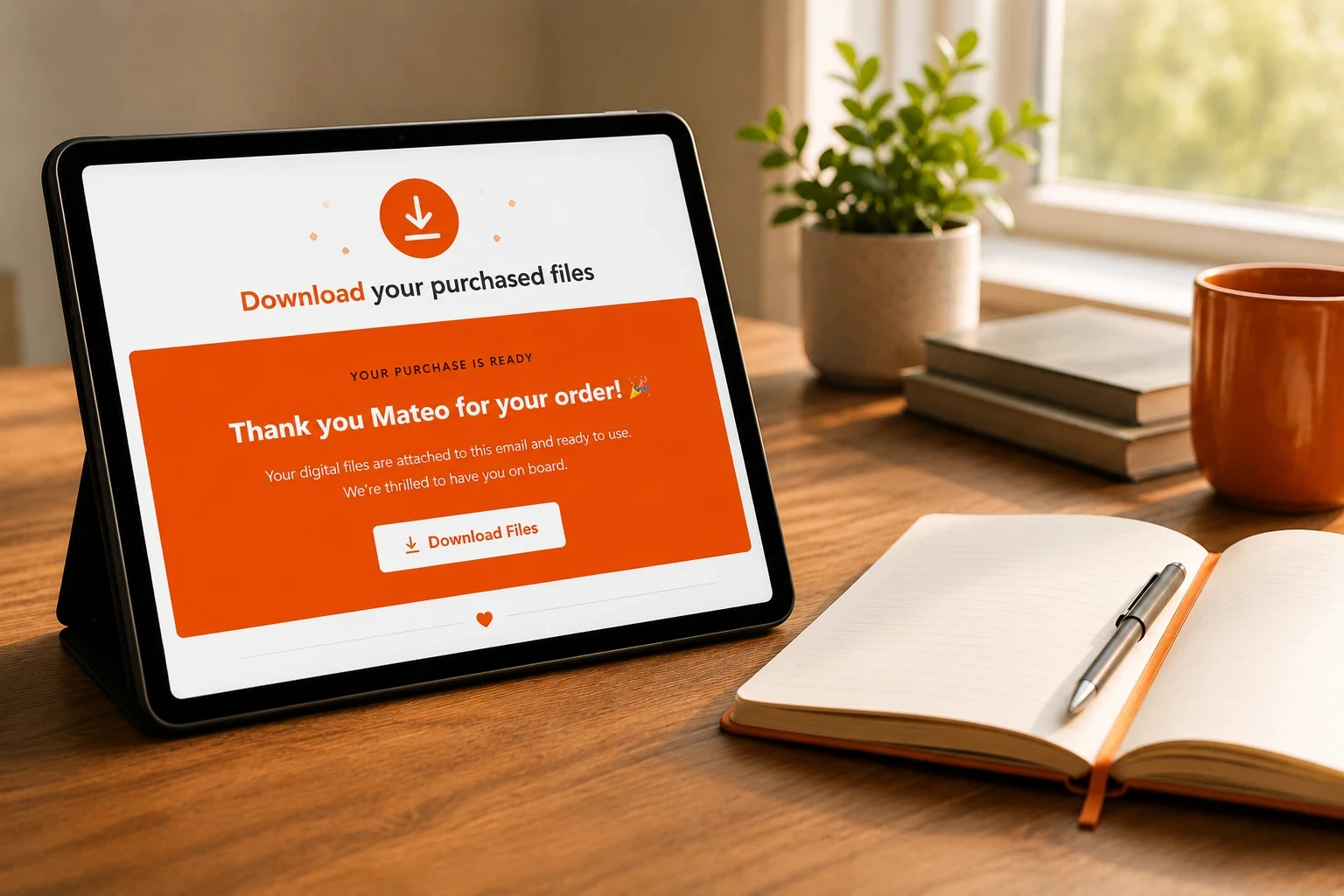
Before your first real sale, run a test purchase. Most merchants create a $0 product or use a discount code that reduces the price to zero, then purchase it themselves using a private browsing window as if they were a customer.
Check three things: the delivery email arrives with a working download link, the thank you page shows the download button after checkout completes, and the customer account order history shows a download option when you log in as the test customer.
Each of those three delivery points touches a different customer scenario. The email covers customers who bookmark the confirmation email. The thank you page covers customers who download immediately and never return. The account page covers customers who come back weeks later looking for a file they misplaced.
If any of the three don't work, the Big Digital Downloads dashboard shows the order status and delivery log, which tells you whether the digital product is correctly linked to the Shopify product and whether the file attachment is confirmed.
Revenue math check: A digital product priced at $27 sold 100 times in a month generates $2,700. At 500 orders per month it's $13,500. Your incremental cost per additional sale after the file is created is effectively zero, unlike a physical product where each unit has material, packaging, and shipping cost. A seller who moves 100 units of a $27 physical product may net $1,800 after those costs. The same seller moving 100 units of a $27 digital product nets closer to $2,500 after payment processing fees alone.
If you sell a product that comes in different versions (different languages, file formats, or resolution tiers), Big Digital Downloads handles this through Shopify's native variant system. Each variant gets its own file, so a customer who selects the English version receives the English PDF and a customer who selects the German version receives the German one, all from the same product page.
The setup starts in Shopify: on your product page, scroll to the Variants section and click Add options. Name the option (Language, Format, Size, or whatever applies) and enter the values. Each variant can also have its own price, so a high-resolution version of a design can be priced differently from a standard one.
Once the variants exist in Shopify, go back into Big Digital Downloads and create a separate digital product for each variant. When linking the digital product to the Shopify product, connect it to one specific variant rather than the product as a whole. The file name of the digital product should match the variant name to keep things organized as your catalog grows. Repeat for each variant.
This pattern also works for bundling a PDF with a Canva template file, or delivering both a compressed version for web use and a full-resolution version for print, all from the same Shopify product. For the specific approach to bundling multiple files into a single purchase, Big Digital Downloads' guide on bundling and upselling digital products on Shopify covers how to structure multi-file products and how to add upsell options at checkout.
Write your refund and return policy on your product page before you make your first sale. "Digital products are non-refundable once downloaded" is the standard policy, but customers who see it before purchasing are less likely to dispute the charge than customers who discover it after. Include it in your product description or as a note below the buy button.
Keep your product images professional. A digital product has no physical box or object to photograph, so the cover image is the only thing a customer can evaluate before buying. A well-designed cover image, mockup of the product in use, or a preview of the first page of the document all outperform a plain file icon. Shopify lets you upload multiple product images; use at least two.
If you update the file after customers have already purchased, be aware that depending on your Big Digital Downloads configuration, existing customers may or may not automatically get the updated version. Check the app settings for how file replacement affects existing orders, and consider sending a manual notification email to previous buyers if the update is significant.
Start with download limits set conservatively. Three downloads per order is usually enough for a legitimate customer downloading on a phone and a laptop. If you receive support tickets from customers hitting the limit (which is rare), you can increase it per order directly in the Big Digital Downloads dashboard without changing the global setting.
Yes, customers can't complete purchases on a free trial. The free trial is useful for setting everything up and testing the delivery flow, but you'll need an active Shopify plan before your first real sale. Big Digital Downloads itself has a free plan that covers 3 products and 15 orders, so the app cost doesn't need to be a barrier at launch.
Yes. Shopify handles mixed stores without any additional configuration. Physical products keep their shipping and inventory settings active, and digital products have those settings turned off. A customer who adds both a physical item and a digital product to their cart gets one checkout, with shipping charges applying only to the physical item.
PDF, JPG, PNG, MP3, MP4, ZIP, RAR, and most common file formats are supported. There's no file size limit, so you can deliver high-resolution design packs, large audio files, or software archives without needing to compress or split files. If you want to deliver content hosted on an external platform (Google Drive, Notion, a course page), you can deliver a secure link instead of an uploaded file using the Links delivery mode.
Big Digital Downloads delivers files through three access points: the delivery email, the thank you page immediately after checkout, and the customer's account order history page. If the email goes to spam and the customer navigated away from the thank you page, they can log in to their customer account on your Shopify store, find the order, and re-download from there. This removes the "I lost my download link" support ticket for the vast majority of customers.
Yes. In Big Digital Downloads, you upload files to a central file library (Apps > Big Digital Download > Files) and can attach the same file to multiple digital products. This is useful if you offer the same ebook as part of a bundle and as a standalone product, without needing to upload the file twice.
Adding digital downloads to a Shopify store is a product creation step, a delivery app configuration, and two theme editor clicks. Once the product is linked to a file, the delivery email, the thank you page button, and the customer account access are all automatic. Big Digital Downloads handles all three from a single setup, with the free plan covering enough products and orders to test the complete experience before you decide whether to upgrade. Install Big Digital Downloads from the Shopify App Store, run a test purchase, and your first digital product is live.